CV-03NETWORK SETUP1 October 20266 MIN
Fix Wi-Fi With Router Placement First
Most weak-signal rooms are a furniture problem. The router is in the wrong place, and an extender will happily repeat the mistake.
Before an extender, a mesh kit, or a new router goes into the basket, move the one you own. Router placement changes signal strength more than most hardware upgrades, costs nothing, and takes twenty minutes. If the machine is in a cupboard beside the fibre box, the first fix is physical.

Start from the middle of the space
Radio signal weakens with distance and with every wall, so the best starting point is a central, open position rather than the corner where the internet enters the home. If the entry point is fixed, use a longer network cable to move the router to a hallway shelf or the middle of the main room. A cable is cheaper than a mesh node and does not add another radio hop.
Height helps. A router on the floor has furniture and people between it and the devices; a router at chest height or above clears some of that. Avoid metal cabinets, the back of a television, and the inside of a closed media unit.
Know which materials block the signal
Wi-Fi passes through drywall and wood with some loss, and struggles with concrete, brick, metal, and water. A fish tank, a mirrored wardrobe, a foil-backed insulation panel, and a metal filing cabinet are all obstacles. So is a floor with underfloor heating mesh. Walk the path between the router and the slow room and look for what sits on it.
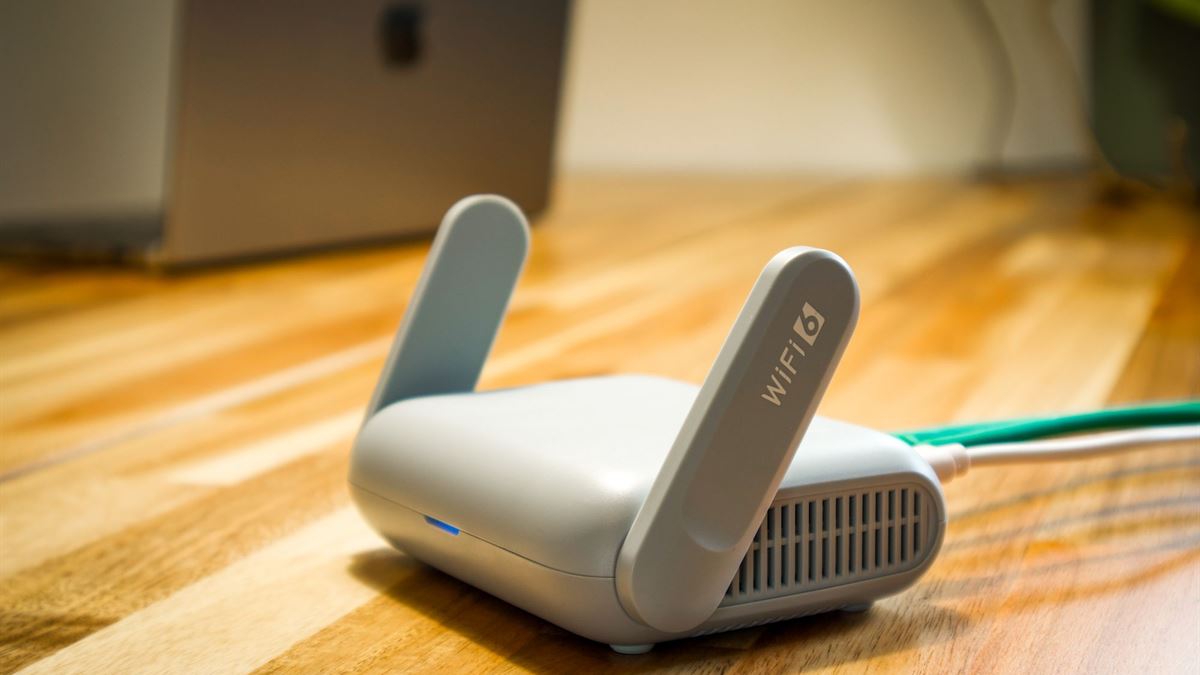
Antenna position matters less than location, but it is free to fix. If the router has removable antennas, keep them vertical for coverage on one floor and angle one horizontally if devices on different floors struggle. Do not point them at each other like a bridge.
Separate the bands and pick a clear channel
Most modern routers run 2.4 GHz and 5 GHz, and sometimes 6 GHz. The 2.4 GHz band travels further and through walls better but is crowded; 5 GHz is faster at shorter range. Put devices that stay close on 5 GHz and leave 2.4 GHz for the far corners and smart home gear.
Neighbouring networks compete on the same channels. Use a Wi-Fi analyser app to see which channels are busy, then set the router to a less crowded one instead of leaving it on automatic if automatic keeps choosing the same channel. On 2.4 GHz, the non-overlapping choices are 1, 6, and 11.
Test in the room that matters
Measure where you actually use the connection, not next to the router. Walk to the slow room, check signal strength and run a speed test at three points: near the door, at the desk, and in the corner. Take a reading before and after each change so the improvement is a number rather than a feeling.
Also test at the time of day the problem happens. A network that fails at eight in the evening may be congested by neighbours rather than weak, which points to channel changes rather than a new access point. The Wi-Fi Alliance explains how generations and certifications differ at wi-fi.org.
Use a checklist before spending
- Move the router to a central, open, elevated position.
- Remove metal, water, and mirrors from the direct path.
- Keep antennas vertical for same-floor coverage.
- Split 2.4 GHz and 5 GHz devices by distance and need.
- Change the 2.4 GHz channel to 1, 6, or 11 after scanning.
- Test before and after, in the room where the problem happens.
If the signal is strong near the router and weak two rooms away, placement and walls are the cause. If one half of the home is consistently slow and a cable cannot reach it, the next decision is an add-on; our guide on mesh or extender compares the two honestly.
When placement is not enough
Some buildings have walls that no consumer router will cross at usable speed, and some homes are long enough that one radio cannot cover both ends. That is the point to add hardware. Move the router first anyway, because a good location makes every later device work better and can turn a two-node purchase into a one-node purchase.
CV / FAQ
Frequently Asked Questions
Where should a Wi-Fi router be placed?
Central, open, and elevated, with as few walls as possible between it and the rooms you use. Avoid cupboards, metal cabinets, and the space behind a television.
Do router antennas need to point at devices?
No. Keep them vertical for coverage on the same floor. Pointing an antenna directly at a device does not focus the signal the way people expect.
Which 2.4 GHz channel should I use?
Choose 1, 6, or 11, because those do not overlap. Scan nearby networks first and pick the one with the least activity in your area.
Can a wall really block Wi-Fi?
Yes. Concrete, brick, metal, foil-backed insulation, and water absorb or reflect radio waves. Each solid wall reduces signal, and several in a row can make a room unusable.